
How to Remove the Background from a Photo (Free, in Seconds)
By Peter Zhu, Founder ·
The fastest way to remove a background in 2026: upload your photo, type what you want — "remove the background" or "put me on a white backdrop" — and let AI do the cutting. No magic wand tool, no manual tracing, no Photoshop. This guide walks through the exact steps, shows a real unedited test result, and gives you copy-paste prompts for the most common situations.
June 11, 2026 · 6 min read
On this page
What's the Fastest Way to Remove a Background?
Describe the edit in plain English. Prompt-based editors like Shotari's background remover take a photo plus a sentence and return the finished image — the whole process is three steps and about twenty seconds:
1. Upload your photo
Drag the image into the editor or click to select it. JPG and PNG both work; higher resolution gives cleaner edges.
2. Type what you want
"Remove the background and replace it with pure white" is the workhorse. Add what to protect: "keep the hair edges natural."
3. Generate and download
The AI returns the edited photo in seconds. Check the edges at full zoom, regenerate if needed, download.
This is fundamentally different from classic cut-out tools. A masking tool decides pixel by pixel what is "subject" and what is "background," and struggles when the two blend. A generative editor understands the scene and redraws it — which is why it can also replace the background, fix the lighting, and keep soft edges in one pass.
Does It Actually Work? A Real Test
We ran this exact test while writing this article — one generation, no retouching, no cherry-picking. Source: a backlit portrait against a busy city skyline, with loose flyaway hair (the classic worst case for background removal). Prompt: "Remove the background completely and replace it with a clean pure white studio background. Keep the subject, her hair and clothing edges perfectly intact and natural." Time: 18 seconds.
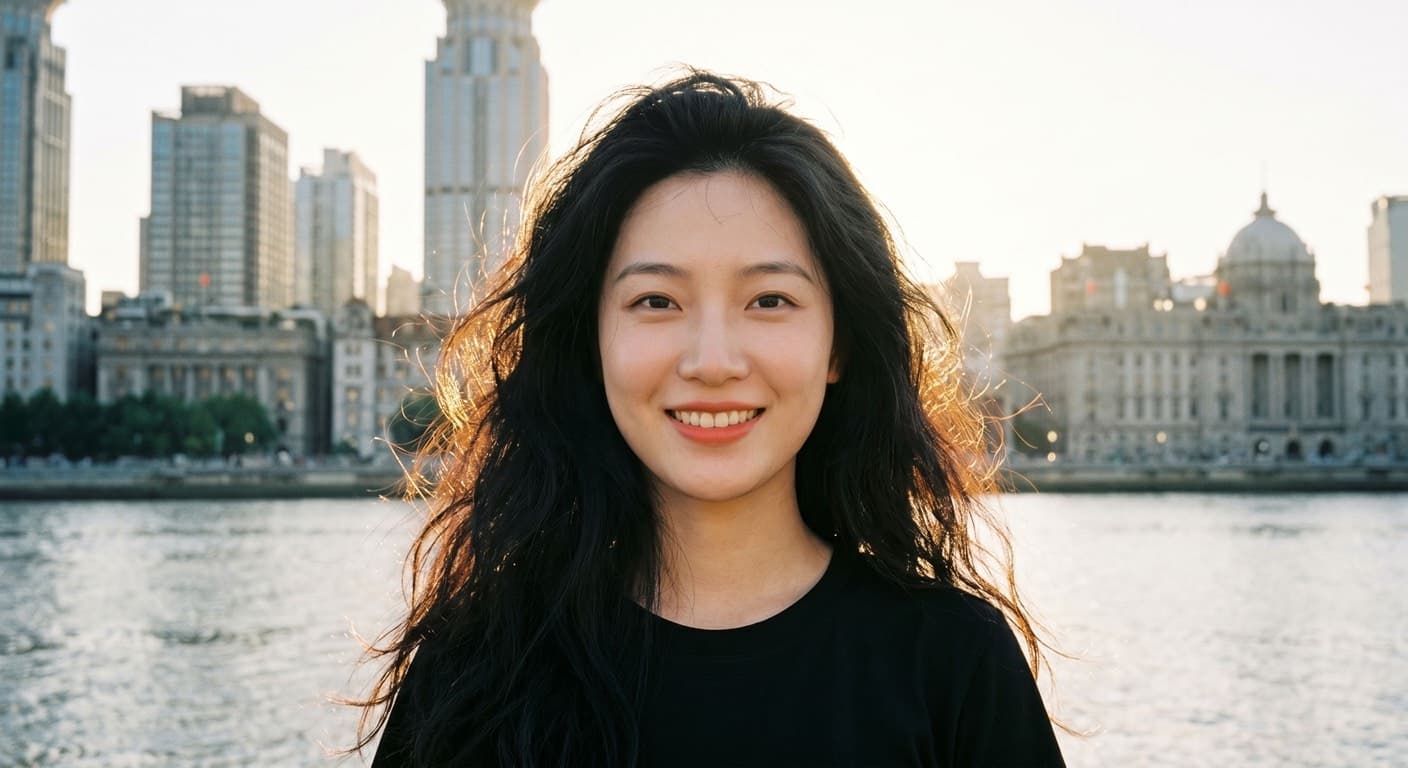
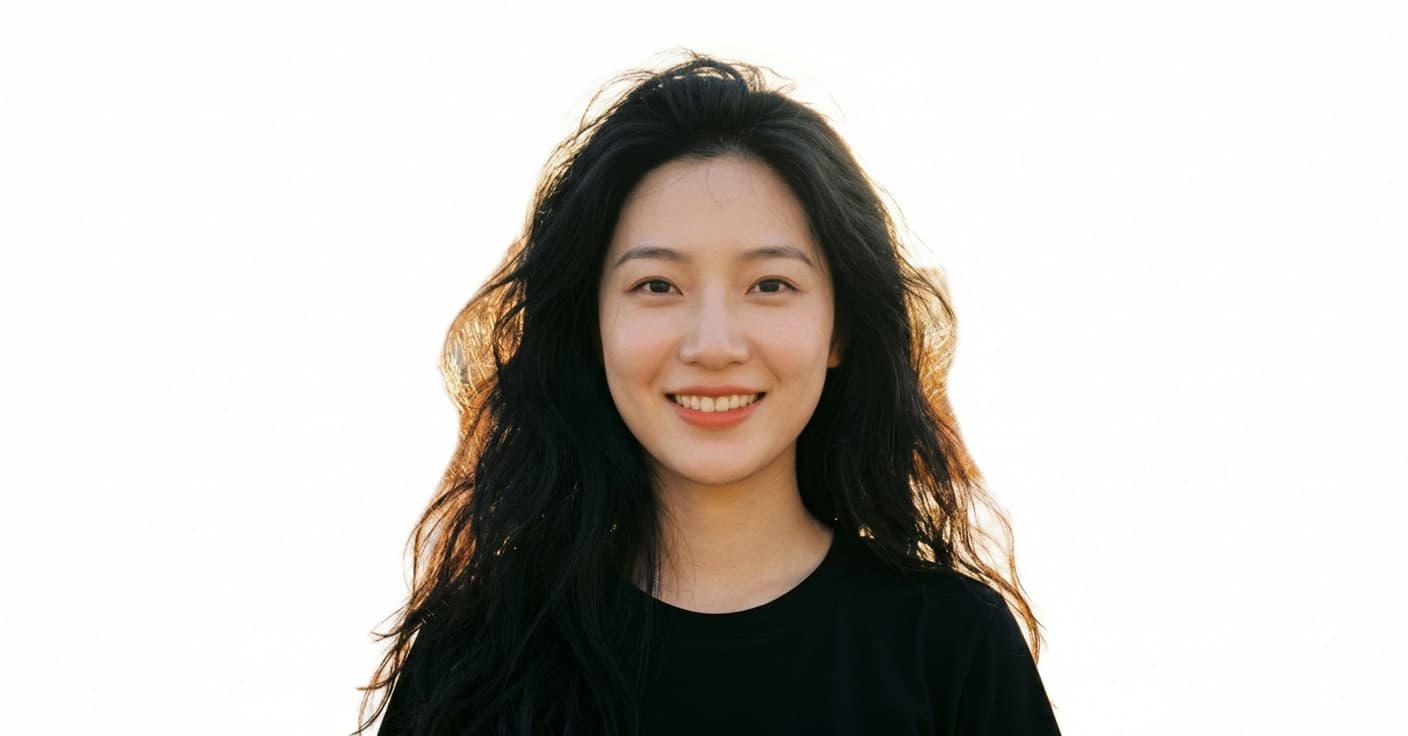
The flyaway strands survived — that's the part a masking tool would have clipped into a helmet-shaped outline. The lighting on the subject was also rebalanced to match the white backdrop, which you'd otherwise fix manually after a hard cut-out.
Remove vs. Replace: What Should You Ask For?
Ask for the end result, not the operation. "Remove the background" really means one of three different jobs:
| You actually want | Ask for |
|---|---|
| A plain backdrop (profile photo, ID, listing) | "Replace the background with pure white / soft gray" |
| The subject in a new place | "Replace the background with [scene], match the lighting on the subject" |
| The same scene, minus distractions | "Keep the background but remove [the specific objects]" |
For full scene replacement, the one detail that separates an obvious composite from a natural photo is lighting direction. Always add "match the lighting on the subject" — for more on phrasing edits effectively, see our guide to writing AI image prompts.
How Do You Clean Up Product Photo Backgrounds?
Ask for a pure white background with a soft shadow — that single prompt covers the requirements of Amazon, eBay, and most marketplaces. A phone photo of your product on a kitchen table becomes a listing-ready image:
- →
Marketplace listings
"Place the product on a pure white background with a soft natural shadow" — keeps the product grounded instead of floating.
- →
Lifestyle shots
"Place the product on a marble counter with soft morning light" — same product photo, new context, no studio.
- →
Batch consistency
Reuse the exact same prompt for every product in a catalog so the whole listing grid looks uniform.
For ecommerce workflows specifically — shadows, reflections, multi-angle sets — the product photo editor has templates tuned for listings.
What Makes a Photo Hard for AI?
Most photos work on the first try. These four cases need an extra generation or a more specific prompt:
- ⚠
Glass and transparent objects
A bottle or glasses lens carries the old background inside it. Ask explicitly: "make the glass show the new background through it."
- ⚠
Very fine mesh and lace
Veils, fishnets, and bicycle spokes can lose their see-through quality. Zoom in and regenerate if the gaps filled in.
- ⚠
Subject and background same color
A white shirt against a white wall gives the model little to separate. Mention the boundary: "the subject is wearing a white shirt — keep its full outline."
- ⚠
Tiny, low-resolution subjects
If the subject is a small fraction of the frame, crop closer before uploading. More subject pixels = cleaner edges.
Copy-Paste Prompts
Paste these into the prompt box after uploading your photo, then adjust the bracketed parts:
Clean white studio background
Remove the background completely and replace it with a clean pure white studio background. Keep the subject's edges, hair, and clothing perfectly intact and natural.
Solid color backdrop
Replace the background with a solid soft gray backdrop, like a professional portrait studio. Do not change the subject in any way.
New scene
Replace the background with a blurred modern office interior. Match the lighting on the subject so the result looks like one natural photo.
Ecommerce white background
Cut out the product and place it on a pure white background (#FFFFFF) with a soft natural shadow beneath it, like an Amazon product listing photo.
Declutter, keep the scene
Keep the background but remove the people walking behind the subject and the trash can on the left. Fill the space naturally.
Tip: if you're cleaning up an old or damaged photo at the same time, do the restoration first — see our photo restoration guide — then swap the background in a second pass.
FAQ
How can I remove a background from a photo for free?
Upload your photo to Shotari, type "remove the background" (or describe the background you want instead), and generate. Free accounts get daily credits — enough for several edits every day, no card required.
Can AI remove backgrounds without ruining hair edges?
Yes — modern prompt-based editors handle hair well because they regenerate the image rather than cutting a hard mask. Ask explicitly: "keep the hair edges intact and natural." Loose, backlit hair is the hardest case, so check the result at full zoom.
Do I get a transparent PNG when I remove a background?
Prompt-based editors replace the background rather than exporting transparency. If you need a transparent asset, ask for a solid uniform background (pure white or green) first — most design tools can then key it out in one click.
What's the difference between removing and replacing a background?
Removing leaves a plain backdrop (white, gray, or any solid color). Replacing puts the subject in a new scene. With a text-prompt editor both are one step — just describe the end result you want.
Will background removal change my subject's face?
It shouldn't, but always tell the model what to protect: "do not change the subject in any way." Then compare the face at 100% zoom before downloading. If anything drifted, regenerate — results vary slightly between runs.
Conclusion
Removing a background no longer deserves a tutorial-length workflow: upload, describe the result, generate. The prompt does the work a selection tool used to — and handles hair, shadows, and lighting that masking tools never could. Be specific about the backdrop you want and what to protect, and check edges at full zoom before downloading.
Remove your first background free →
Upload a photo on Shotari, paste one of the prompts above, and generate. Free accounts get daily credits — no card needed.
Open Background Remover